
A GSM modem is a specialized type of modem which accepts a SIM card, and operates over a subscription to a mobile operator, just like a mobile phone. From the mobile operator perspective, a GSM modem looks just like a mobile phone.
For the purpose of this document, the term GSM modem is used as a generic term to refer to any modem that supports one or more of the protocols in the GSM evolutionary family, including the 2.5G technologies GPRS and EDGE, as well as the 3G technologies WCDMA, UMTS, HSDPA and HSUPA.
A GSM modem exposes an interface that allows applications such as NowSMS to send and receive messages over the modem interface. The mobile operator charges for this message sending and receiving as if it was performed directly on a mobile phone. To perform these tasks, a GSM modem must support an “extended AT command set” for sending/receiving SMS messages, as defined in the ETSI GSM 07.05 and and 3GPP TS 27.005 specifications.
GSM modems can be a quick and efficient way to get started with SMS, because a special subscription to an SMS service provider is not required. In most parts of the world, GSM modems are a cost effective solution for receiving SMS messages, because the sender is paying for the message delivery.
 A new version of NowSMS is available that supports the ability to use Android phones as GSM modem devices for both sending and receiving SMS and MMS messages.
A GSM modem can be a dedicated modem device with a serial, USB or Bluetooth connection, such as the Falcom Samba 75 used in this document. (Other manufacturers of dedicated GSM modem devices include Wavecom, Multitech and iTegno.) To begin, insert a GSM SIM card into the modem and connect it to an available USB port on your computer.
A GSM modem could also be a standard GSM mobile phone with the appropriate cable and software driver to connect to a serial port or USB port on your computer. Any phone that supports the “extended AT command set” for sending/receiving SMS messages, as defined in ETSI GSM 07.05 and/or 3GPP TS 27.005, can be supported by the Now SMS & MMS Gateway. Note that not all mobile phones support this modem interface.
Due to some compatibility issues that can exist with mobile phones, using a dedicated GSM modem is usually preferable to a GSM mobile phone. This is more of an issue with MMS messaging, where if you wish to be able to receive inbound MMS messages with the gateway, the modem interface on most GSM phones will only allow you to send MMS messages. This is because the mobile phone automatically processes received MMS message notifications without forwarding them via the modem interface.
It should also be noted that not all phones support the modem interface for sending and receiving SMS messages. In particular, most smart phones, including Blackberries, iPhone, and Windows Mobile devices, do not support this GSM modem interface for sending and receiving SMS messages at all at all. Additionally, Nokia phones that use the S60 (Series 60) interface, which is Symbian based, only support sending SMS messages via the modem interface, and do not support receiving SMS via the modem interface.
When you install your GSM modem, or connect your GSM mobile phone to the computer, be sure to install the appropriate Windows modem driver from the device manufacturer. To simplify configuration, the Now SMS & MMS Gateway will communicate with the device via this driver. If a Windows driver is not available for your modem, you can use either the “Standard” or “Generic” 33600 bps modem driver that is built into windows. A benefit of utilizing a Windows modem driver is that you can use Windows diagnostics to ensure that the modem is communicating properly with the computer.
The Now SMS & MMS gateway can simultaneously support multiple modems, provided that your computer hardware has the available communications port resources.
To define which modems are to be utilized by the gateway, select the “SMSC” configuration dialog from the gateway configuration dialog:
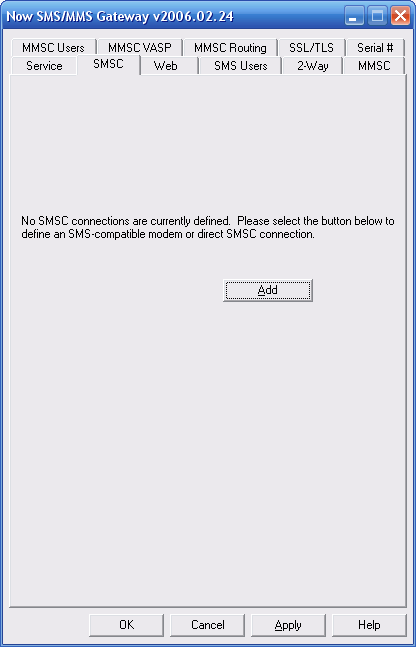
If no modems are yet to be defined, only the “Add” button will be available on this dialog. Select “Add”, and then “GSM Phone or Modem” to display a list of available modem drivers on your computer.

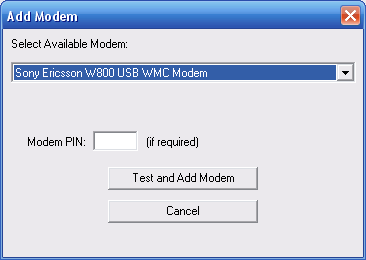
Select an available modem and press the “Test and Add Modem” button. The gateway will then attempt to initialize the modem, and confirm that the modem supports the necessary interfaces to send and receive SMS messages. The modem will only be added to the configuration if the gateway confirms that it can properly communicate with the modem. If the SIM card for the modem requires a 4-digit PIN, please supply it in the field provided.
NowSMS will verify that it can communicate with the modem, and that the modem supports several of the basic AT commands defined in the ETSI GSM 07.05 (3GPP TS 23.005) specification. If the modem is successfully tested, NowSMS will display the following:
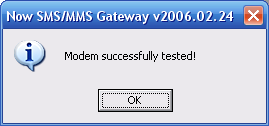
If there is a problem testing the modem, NowSMS will display an error message.
GSM Modem Troubleshooting Tips
When you encounter any error initialising a GSM modem, we recommend the following troubleshooting steps outlined below. These general troubleshooting steps will be followed by suggestions that are specific to particular error conditions.
- It is possible to define a modem connection by either selecting the name of the Windows modem driver, or selecting the name of the COM port to which the modem is connected. If you are attempting to connect to a modem by specifying a COM port and are experiencing problems, the best way to troubleshoot this problem is to ensure that you are connecting to the phone or modem using a Windows modem driver supplied by the phone or modem manufacturer, instead of going directly to a COM port. When you configure a GSM modem connection for the gateway, you are presented with a list of modem drivers installed on your system, as well as a list of COM ports. You will achieve better results going through the modem driver. If you have not installed a Windows modem driver for your device, visit the manufacturer web site, or use the CD supplied by the manufacturer, and install the appropriate modem driver. If the manufacturer does not supply a Windows modem driver (such as Wavecom), we recommend you manually define the “Standard 33600 bps Modem” driver for the modem.
- Assuming an appropriate modem driver is installed, go into the Windows Control Panel, and select the “Modems” or “Phone and Modem Options” applet. In the diagnostics section, ensure that you are able to use “Query Modem” to interface with your modem, which will ensure that Windows is able to properly communicate with the modem. The Now SMS & MMS gateway will not be able to access the modem if it is not accessible to Windows. If Windows indicates that another application is already using the modem, then you need to determine which application is involved. If you are using a phone as a modem, there may be a communications suite associated with the modem that opens a connection to the modem for phone book maintenance or other functions, which needs to be disabled. For other types of errors, follow the instructions from the device manufacturer if you encounter problems accessing the modem in the Windows Control Panel.
- Another common problem is an incorrect cable, or a faulty cable. Some phone manufacturers have different cables for different purposes. You want to the type of cable that allows your PC to use the phone as a modem (sometimes referred to as a “data/fax cable”). For example, most older Nokia phones have DLR-3 and DAU-9 types of cables. The DLR-3 type is for data/fax applications, and the DAU-9 is for use with Logo Manager. The Now SMS & MMS gateway requires the DLR-3 type (data/fax). For newer Nokia devices, as well as devices for other manufacturers, verify that you have the correct cable for using the device as a data modem.
- Is there a PIN associated with the SIM in the modem? Try putting the SIM into a mobile phone and see if it prompts for a PIN. If it does, try removing the PIN and trying again. (NowSMS supports modem PINs, but some modem drivers may have PIN related problems.)
- Try turning off the power to the modem and restarting the modem. If the problem reoccurs, and a power cycle of the modem consistently resolves the problem, this suggests that the modem was in a hung state which might potentially be resolved by a firmware upgrade from the modem manufacturer.
- Try rebooting the PC. If the problem reoccurs, and a PC reboot consistently resolves the problem, this suggests that the software modem driver was in a hung state which might be potentially resolved by an upgrade of the Windows modem driver software from the modem manufacturer.
- Try de-installing and re-installing the Windows modem driver associated with the modem.
Additional information is supplied below regarding specific modem initialisation errors that may be returned by NowSMS:
Unable to access modem at COMx: — Error 5 — Access Denied — Another application is already using this device: This error message indicates that another Windows application is already communicating with the modem, and only one application can communicate with the modem at a time. It is possible that some software that was installed with your modem may be automatically opening a connection to the modem for its own purposes, so we recommend that you try disabling some of the more advanced features of any communications suite software that came with your phone or modem. If the error persists, try connecting the modem to a different port. We also recommend that you attempt further diagnostics within the Windows Control Panel, using the “Query Modem” function under the Diagnostics section of the Phone & Modem Options applet.
Unable to access modem at COMx: — Error xxxx — yyyyyyyyyy: This error message indicates that Windows is reporting a problem accessing the communications port associated with the modem. In this case, COMx indicates the port number associated with the modem. xxxx indicates the Windows error number. yyyyyyyyyy is descriptive text for the error as provided by Windows. If the problem condition is not obvious based upon the supplied error information, we suggest querying the NowSMS discussion board (https://nowsms.com/messages) for potential information. If the error persists, try connecting the modem to a different port. We also recommend that you attempt further diagnostics within the Windows Control Panel, using the “Query Modem” function under the Diagnostics section of the Phone & Modem Options applet.
Unable to initialize modem: Error XXXXXXXX from lineOpen: This error message indicates that the Windows Telephony API (TAPI) subsystem could not open a connection to the modem. In most cases, this is the same as the “Error 5 — Access Denied” error above, indicating that another Windows application is already communicating with the modem. We suggest following the same suggestions as offered above. In some cases it may be necessary to de-install the Windows modem driver, and re-install it.
Unable to initialize modem: Error XXXXXXXX from lineGetID: This error message indicates that Windows could not get a response back from the modem, when it attempted to communicate with the modem. We recommend that you attempt further diagnostics within the Windows Control Panel, using the “Query Modem” function under the Diagnostics section of the Phone & Modem Options applet. If the problem persists, try turning off the power to the modem and restarting it. If a power cycle of the modem resolves the problem, this suggests that the modem was in a hung state which might potentially be resolved by a firmware upgrade from the modem manufacturer. If the problem persists, try rebooting the PC. If a PC reboot resolves the problem, then this suggests that the software modem driver was in a hung state which might be potentially resolved by an upgrade of the Windows modem driver software from the modem manufacturer. If the above suggestions do not resolve the problem, we recommend that you attempt to de-install the Windows modem driver, and then re-install it.
Modem does not support SMS — ERROR: This error message indicates that the modem does not support some of the required commands as defined in ETSI GSM 07.05 (3GPP TS 23.005). Specifically it is rejecting the AT+CSMS=0 command. It may be possible that you have selected the wrong modem (for example an internal modem built into the PC), or that the modem does not support the AT commands for sending/receiving SMS as defined in the above referenced specification. Some phones, such as the SonyEricsson P800/P900/P910 do provide the ability to function as a GPRS modem for internet connectivity, but they do not support the SMS-related AT commands. You may want to query the NowSMS Discussion Board (https://nowsms.com/messages) for more information regarding your phone or modem model.
Modem does not support SMS text or PDU mode commands – ERROR: This error message indicates that the modem does not support some of the required commands as defined in ETSI GSM 07.05 (3GPP TS 23.005). Specifically, it is rejecting both the AT+CMGF=0 and AT+CMGF=1 commands, where NowSMS is trying to determine if the modem can support either text or PDU (binary) mode. It is very unusual for this error to be returned, therefore you may want to query the NowSMS Discussion Board (https://nowsms.com/messages) for more information regarding your phone or modem model.
Unable to access modem, ensure that it is powered on and passes diagnostic tests: This error message is displayed when there is a communications error communicating with the modem. Another error message should have been displayed prior to this message, and that error message contains more specific information about the nature of the problem.
After the Modem is added, there are additional Properties that can be configured for the modem connection. Highlight the modem name in the “SMSC” list, and press the “Properties” button:
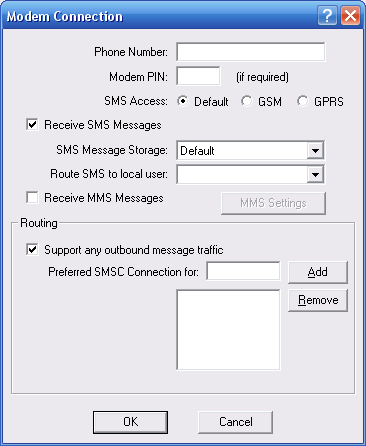
The “Phone Number” field is used to tell NowSMS the phone number associated with this modem. It is not mandatory to supply a phone number, however if a phone number is specified, it will be possible to submit messages to the gateway in such a way that if multiple SMSC or GSM modem connections are defined, the message will be sent out via this connection. (This is possible by including a “Sender” parameter in a URL request to submit a message, where the value of this parameter matches the “Phone Number” field configured for a specific GSM modem. For more information, refer to Submitting SMS Messages – URL Parameters.) When receiving SMS or MMS messages, the phone number will be supplied as the receiving address of the message, allowing applications to determine which modem received the message in an installation with multiple GSM modem connections.
A Modem PIN is a 4-digit code that is used for security purposes. If a PIN is configured on the SIM card installed in the modem, the phone or modem cannot be used until the PIN is entered. If you want the gateway to automatically supply the PIN to the modem upon startup, supply this PIN in the “Modem PIN” field.
The “SMS Access” setting specifies whether SMS messages should be sent by the modem over the circuit-switched or packet-switched network. This setting is not limited to GSM and GPRS environments, but also applies to EDGE and 3G/WCDMA/UMTS. Setting the value to “Default” uses the default as configured on the modem. Setting the value to “GSM” tells the modem to use the circuit-switched network for sending SMS. Setting the value to “GPRS” tells the modem to use the packet-switched network. Generally speaking, the packet-switched network will offer better performance, however it is not supported by all operators, in which case the “GSM” setting must be used. Similarly a modem might default to SMS over the packet-switched network, and if you experience a problem sending SMS with a particular modem it might be necessary to manually configure the “GSM” setting to tell the modem to use the circuit-switched network instead.
If the Now SMS & MMS Gateway should process SMS messages received by the attached modem, the “Receive SMS Messages” setting should be enabled. The “SMS Message Storage” location should be left at “Default” unless otherwise instructed by technical support. For more information on how to process received SMS messages, please refer to 2-Way SMS Support.
It is possible to configure NowSMS to route all SMS messages received via this modem to a user account on the NowSMS server by selecting the user account in the “Route SMS to local user” setting. It is possible for a user to connect to the NowSMS server either using SMPP (an SMS specific protocol) or POP3 (an e-mail protocol). These user accounts are defined on the “SMS Users” page of the NowSMS configuration dialog.
If the Now SMS & MMS Gateway should process MMS messages received by the attached modem, the “Receive MMS Messages” setting should be enabled. The “MMS Settings” dialog will display a dialog with additional configuration settings that are required for enabling the gateway to be able to receive MMS messages from the operator network. Please note that a dedicated GSM modem device (not a phone acting as a modem) is required in most instances in order to support the receiving of MMS messages, and in most cases the modem device must also support GPRS. For additional configuration information, please refer to Connecting to an Operator MMSC – Using a GPRS Modem. For additional configuration information on processing received MMS messages, please refer to 2-Way MMS Support.
The “Routing” group of options is used when multiple SMSC connections are defined to the gateway. These options define what messages should be routed to this connection. The Routing options are common to SMPP, GSM Modem, UCP/EMI and HTTP connections, and are described in the Routing Options section.