Web Menu Interface

Click here to return to the Now SMS/MMS Gateway Home Page


When the menu driven web interface is enabled, it is easy to test the ability of sending various types of SMS messages.


To enable the menu driven web interface of the gateway, you must check "Enable menu driven web interface" on the "Web" page of the configuration dialog. When that option is enabled, you can connect to the web interface with a web browser. On the "Web" page of the configuration dialog, there is a setting named "Port number for web interface". To connect to the web interface of the gateway, connect to http://ip.address:port, where "ip.address" is the IP address or host name of the PC running the gateway, and "port" is the port number specified for the web interface.


In a default configuration, the web menu interface can be accessed on the gateway PC by pointing a web browser to http://127.0.0.1:8800.


For more information on configuring the Web Menu Interface, see the help file.


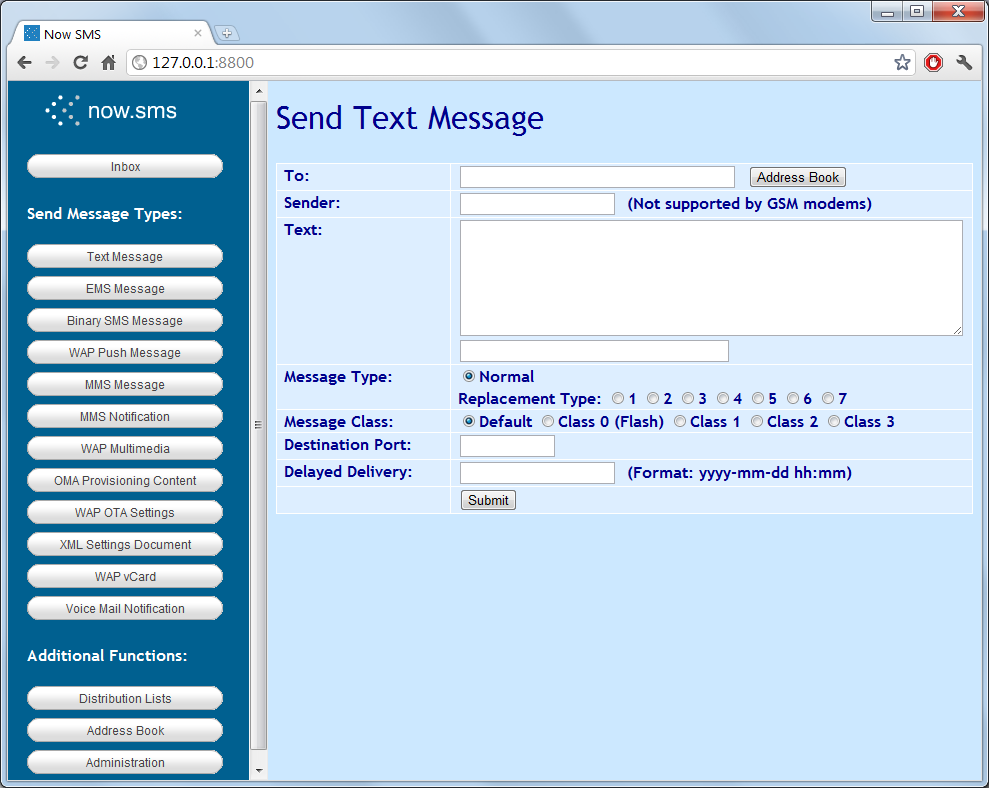
With a web browser, connect to the web port configured for the SMS gateway, and an interface similar to the following will be displayed.


This web page provides a menu driven interface for sending various types of SMS and MMS messages.


For information on how to send specific types of messages, please refer to the appropriate section below:


v     Send Text Message

v     Send Binary Message

v     Send WAP Push Message

v     Send MMS Message

v     Send MMS Notification

v     Send WAP OTA Settings

v     Send WAP OTA Bookmark

v     Send Voice Mail Notification


Send Text Message


To send a text message, simply enter a phone number and the text of your message. If the message is longer than 160 characters, the gateway will automatically use concatenated SMS ("long SMS") message support to send the entire message.


Send Binary Message


Sending a binary message through the web interface typically requires more knowledge of the binary SMS protocol that you are attempting to use. HTML forms are included for simplifying the process of sending Nokia Smart Messaging types, along with a general form for sending any binary message.


Send Nokia Ring Tone


To send a Nokia ring tone, you must have a hex string value for the ring tone data. The hex string format represents two characters for each binary byte of ring tone data. Documentation of the ring tone data format is beyond the scope of this document.


For those who wish to send ring tones programmatically via the Now SMS/MMS Gateway, note that this form includes the following hidden fields which are included as URL parameters when submitting the message to the server:

UDH = 06050415811581

PID = 0

DCS = F7


Send Nokia CLI (Group) Icon


To send a Nokia Group Icon, you must have a hex string value for an OTA Bitmap, as defined by the Nokia Smart Messaging specification. The hex string format represents two characters for each binary byte of OTA Bitmap data. Documentation of the OTA Bitmap data format is beyond the scope of this document.


For those who wish to send Nokia Group icons programmatically via the Now SMS/MMS Gateway, note that this form includes the following hidden fields which are included as URL parameters when submitting the message to the server:

UDH = 06050415831583

PID = 0

DCS = F7


JavaScript in the HTML form adds the hex string "30" to the beginning of the OTA Bitmap string and submits it as the "Data" parameter in the URL.


Send Nokia Operator Logo


Nokia Operator logos are one of the more complicated of the Nokia Smart Messaging formats. To send a Nokia Operator logo, you must have a hex string value for an OTA Bitmap, as defined by the Nokia Smart Messaging specification. The hex string format represents two characters for each binary byte of OTA Bitmap data. Documentation of the OTA Bitmap data format is beyond the scope of this document. You must also know the Mobile Country Code (MCC) and Mobile Network Code (MNC) values of the network operator to which the recipient is subscribed. A link on the form provides more information on MCC and MNC codes, and a pointer to the URL http://www.gsmworld.com/roaming/gsminfo/index.shtml, from which you can look up the MCC and MNC codes of various network operators.


For those who wish to send Nokia Operator logos programmatically via the Now SMS/MMS Gateway, note that this form includes the following hidden fields which are included as URL parameters when submitting the message to the server:

UDH = 06050415821582

PID = 0

DCS = F7


JavaScript in the HTML converts the MCC and MNC codes into the format required by the Nokia Smart Messaging specification, and combines them with the OTA Bitmap data to create a valid operator logo message in the URL "Data" parameter submitted by the form.


Send Nokia Picture Message


Nokia Picture Messaging should not be confused with MMS picture messaging. The Nokia picture messaging format typically only allows for the submission of small specially formatted black and white pictures, whereas MMS provides support for larger color images in a variety of different formats.


To send a Nokia Picture Message, you must have a hex string value for an OTA Bitmap, as defined by the Nokia Smart Messaging specification. The hex string format represents two characters for each binary byte of OTA Bitmap data. Documentation of the OTA Bitmap data format is beyond the scope of this document. A picture message also includes a short text message.


For those who wish to send Nokia Picture Messages programmatically via the Now SMS/MMS Gateway, note that this form includes the following hidden fields which are included as URL parameters when submitting the message to the server:

UDH = 060504158A158A

PID = 0

DCS = F7


JavaScript in the HTML form combines the message text and the OTA bitmap data to create a valid picture message in the URL "Data" parameter submitted by the form.


Send Binary Message Other


The "Send Binary Message Other" form allows for the submission of other types of binary messages. This typically requires more knowledge of the binary SMS protocol that you are attempting to use, but this web form can be convenient for testing.


Send WAP Push Message


It has never been simpler to send a WAP Push message. Simply enter a phone number, a WAP URL (if the "http://" prefix is not included it will be added automatically), and some text to be included in the informational message displayed to the user. The gateway will automatically generate and send a WAP Push "Service Indication" (SI) message to the specified phone number.


Send MMS Message


It no longer requires a degree in rocket science to send an MMS message.


The menu interface provides two methods for sending an MMS message. The "Send MMS Message" option allows you to define a subject, message text, and optionally include multiple content files (uploaded via the browser). Content files may include text files, audio files, image files, SMIL files, and/or other supported MMS content types. The gateway automatically compiles the MMS message file and uses the gateway's built-in MMSC to send the message.


Note that this menu interface also allows for the sending of a pre-compiled MMS message file. If you are sending a pre-compiled MMS message file, that file should be submitted as the only content file for the message, and it should have a ".mms" file extension.


The alternative MMS interface, "Send MMS Notification" is intended for more advanced developers. After creating a binary MMS message file (don't worry the gateway includes tools to help you do this!), and storing the message file on a web server with a MIME type of "application/vnd.wap.mms-message", this dialog shows how the gateway can be used to send a notification to the message recipient that instructs the recipient's phone to connect to the specified URL to retrieve the MMS message content.


Note: When the "Send MMS Notification" function is used, the MMS Notification is sent to the recipient independent of the MMSC built-in to the gateway. The message recipient will fetch the message directly from the URL specified. As the message is not routed through the MMSC, the MMSC cannot provide dynamic content adaptation and conversion services.


Send WAP OTA Settings


The gateway supports sending WAP OTA (Over-the-Air) configuration information to WAP compatible mobile phones. The "Send WAP OTA Settings" option allows a complete WAP configuration profile to be sent to a compatible mobile phone (the gateway supports the Nokia/Ericsson OTA Settings specification).


The web menu interface provides support for GPRS and GSM/CSD (GSM dial-up) configurations.


Settings are operator specific, so please refer to your operator for information on settings that are appropriate for your environment.


Send WAP OTA Bookmark


The gateway supports sending WAP OTA (Over-the-Air) configuration information to WAP compatible mobile phones. The "Send WAP OTA Bookmark" option allows bookmarks to be sent to compatible mobile phones. Simply specify the WAP URL, a title for the bookmark, and a phone number to which the bookmark should be sent. Be forewarned that many phones do not yet support this bookmark feature.


Send Voice Mail Notification


Voice Mail Notification Messages are special SMS messages that are used to tell the user that they have voice mail waiting. On most mobile phones, the phone displays a message prompt, and the user can press a single key to be transferred to voice mail. This voice mail phone number is configurable via the mobile phone settings.


This dialog supports sending special SMS messages to turn on and off the voice mail waiting status.